How it works
When page reactions are on, your widget gets a small smiley button next to the poll button and your button. A visitor taps it and sees a card asking “How was this page?” with four faces: Bad, Okay, Good and Great.
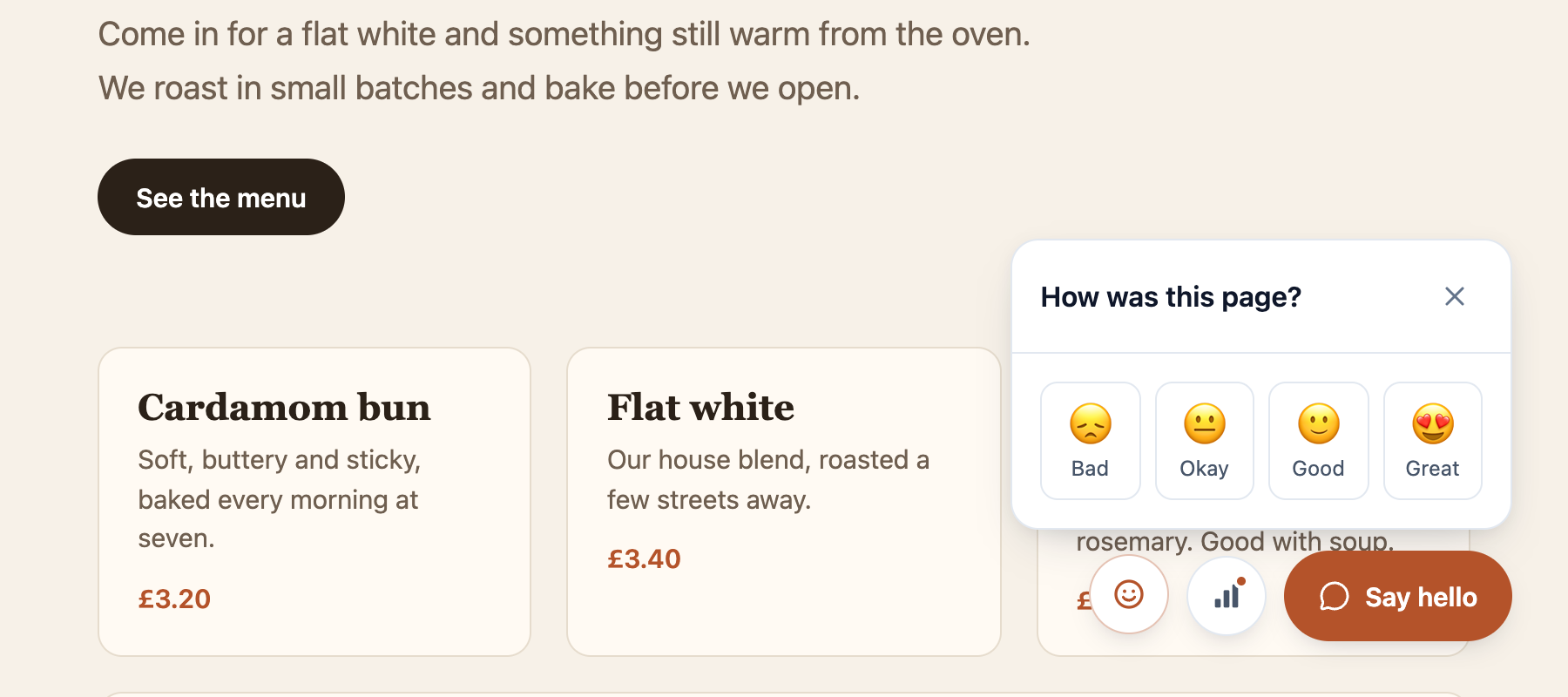 The reactions card on a website. The visitor taps once and they’re done.
One tap is all it takes. There’s no form, no message to write and no email address to give. That’s the point: a tap is far easier than a message.
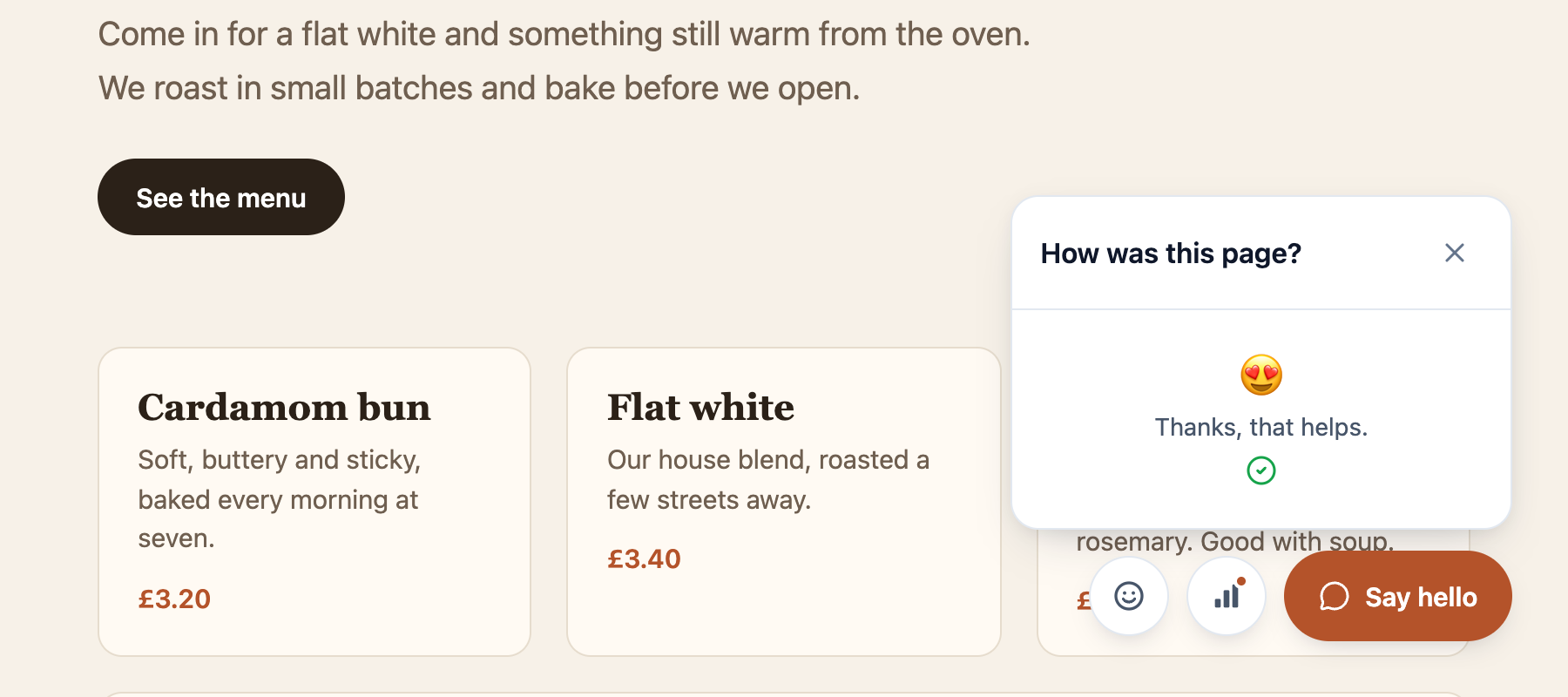 After the tap, the card says thanks.
Each reaction is stored against the page the visitor was on, so you know which page they meant.
Turn it on
Open your widget and go to the Reactions tab. Reactions are off by default, so you’ll see a short explanation and a Turn on reactions button. Click it and the smiley button is added to your widget. Turn off reactions removes it again.
See which pages people like
The Reactions tab lists every page that has a reaction, busiest first, with the number of each face next to it.
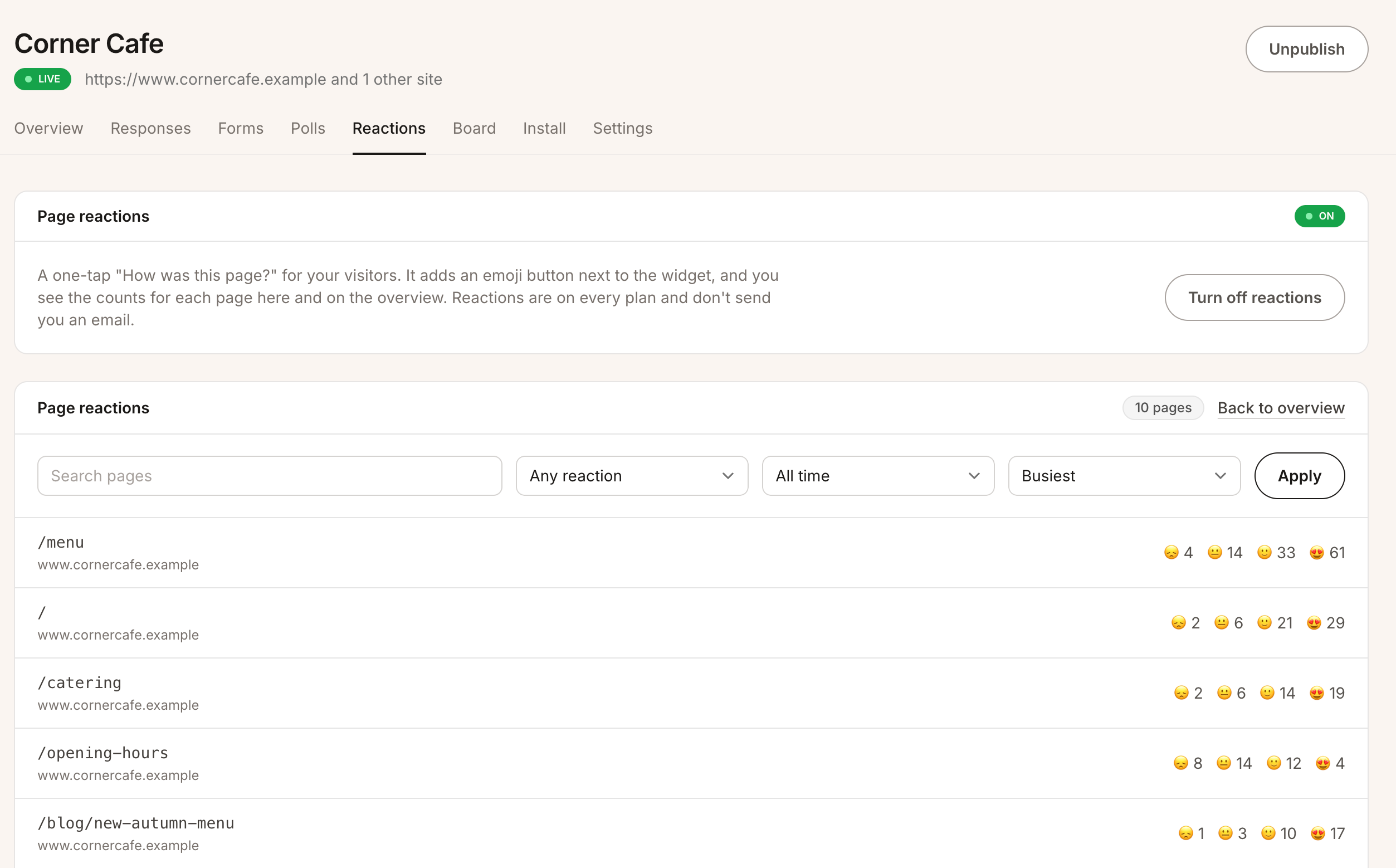 The Reactions tab: the switch at the top, then each page with its counts.
Click a page’s address to open the live page in a new tab. The same address on two different sites, such as your live site and a test copy, is counted as two pages, and the site is shown under each one.
Your Overview tab shows the ten busiest pages in a card of its own, with a View all pages link when there are more.
Find the pages that let people down
Above the list there are four controls. Each menu shows its current choice, so these are the names you’ll see when you first open the page:
- Search pages matches part of an address or the site.
- The Any reaction menu shows only pages that have at least one of the face you choose.
- The All time menu limits the counts to the last 7 or 30 days.
- The Busiest menu puts the busiest, happiest or unhappiest pages first, or lists them from A to Z.
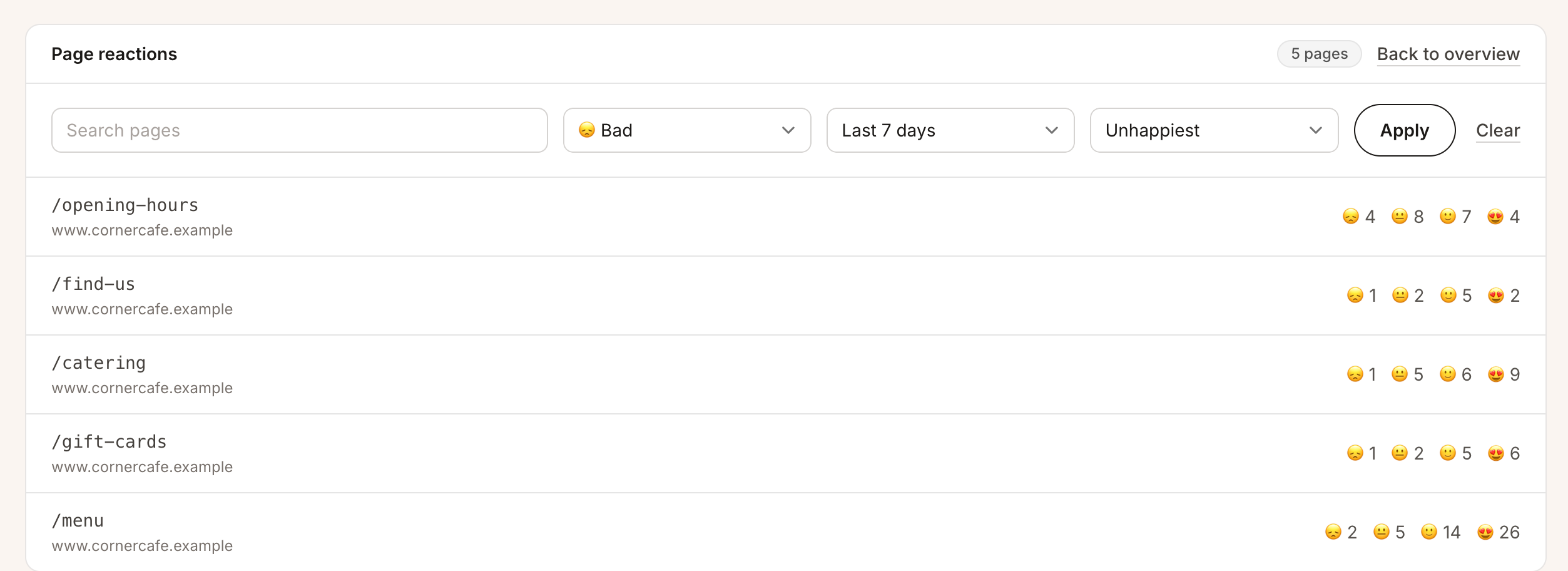 Pages with a Bad reaction in the last week, unhappiest first. The opening hours page is the one to fix.
Sorting by Unhappiest is the quickest way to a to-do list. The pages at the top are the ones where the biggest share of visitors tapped Bad or Okay.
Try it yourself
Use the preview in your dashboard to tap a few reactions and see how they look in the list. They’re marked Preview and kept apart from real visitors. When you’re done, Delete previews at the top of the list clears them, so your real numbers start clean.
What to keep in mind
- It tells you how a page feels, not why. A page with a lot of Bad reactions needs a look, but the tap won’t say what’s wrong. Pair it with the feedback form, which is right there in the same widget.
- The counts aren’t a headcount. Visitors aren’t identified, so someone who reloads can react again.
- No email per reaction. You’ll check the Reactions tab, not your inbox.