Why share the results
People answer a poll because they want a say, and most of them want to know how everyone else answered. Showing the result closes the loop. It also gives you something to post: “58% of you want us open on Sundays” is a better newsletter line than “we’re thinking about Sundays”.
Until now the results lived only in your dashboard, and in the widget for the people who had just voted. Now any poll can have its own page.
Turn on sharing
Open the poll from the Polls tab of your widget and click Share results. The card changes to show two things:
- Link: a public page at
hiwidget.com/results/followed by a random code. Anyone with the link can see the results. Nobody can guess it. - Embed on your site: an
iframecode you can paste into a blog post, a newsletter page or any page builder that accepts HTML.
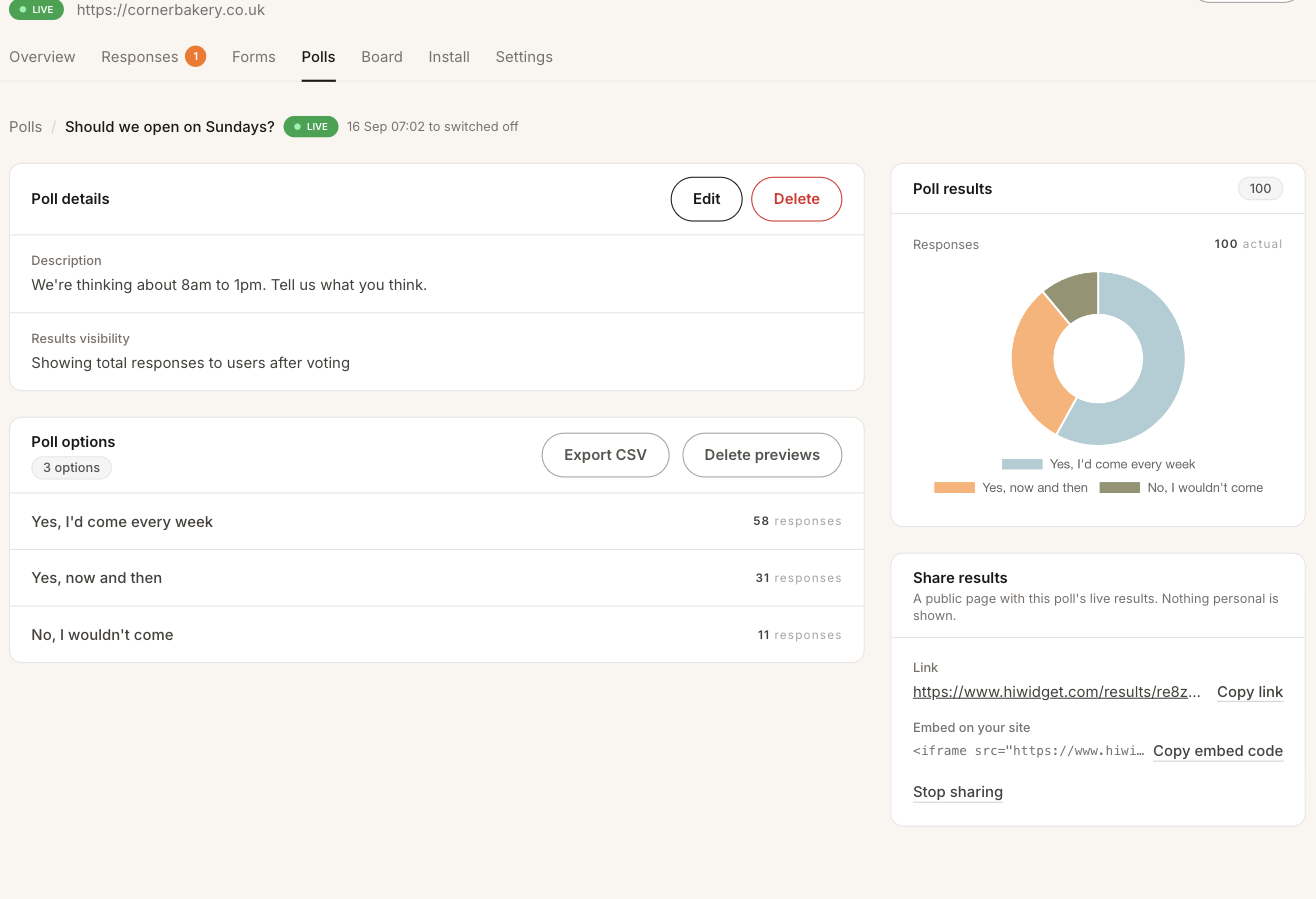 The Share results card sits under the poll’s chart.
Click Copy link or Copy embed code and paste it where you want it.
What visitors see
The link opens a plain page with your question, your description and each option’s share of the votes, in the same order as in your widget.
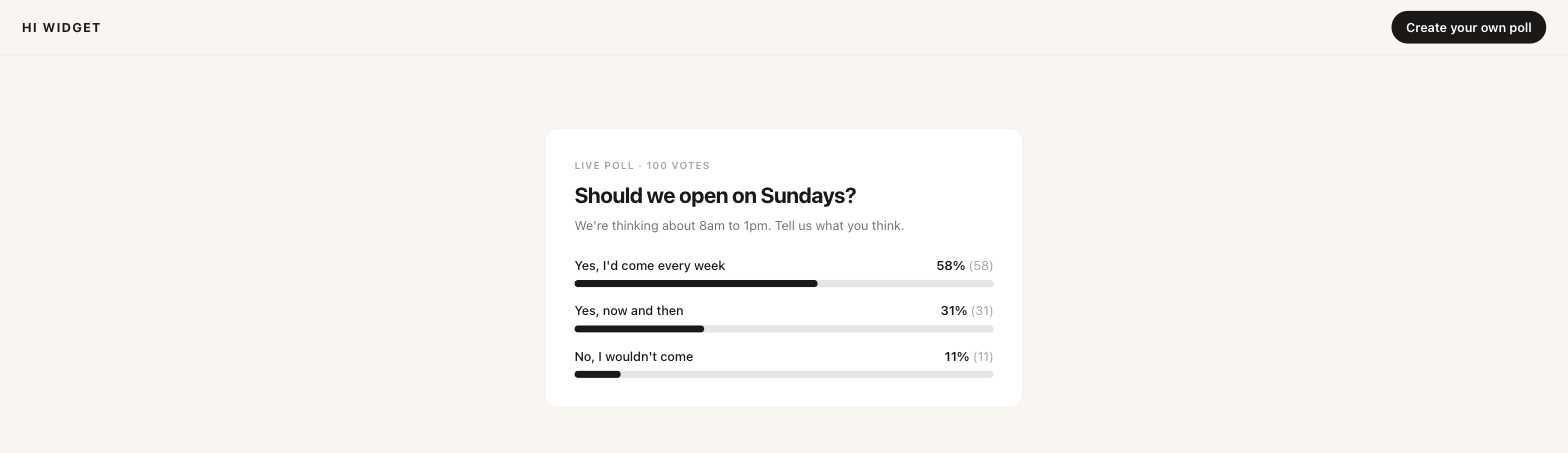 The public results page. There’s no navigation to our site on it: it’s your page.
Vote counts in brackets follow your poll’s Show total votes setting, the same as in the widget. With it off, visitors see percentages only.
Only real votes count. Test votes from your own dashboard preview aren’t included, and nor are votes for an option you’ve since removed.
Put the results in a blog post
The embed code shows the same results inside your own page, with your page’s heading and text around it.
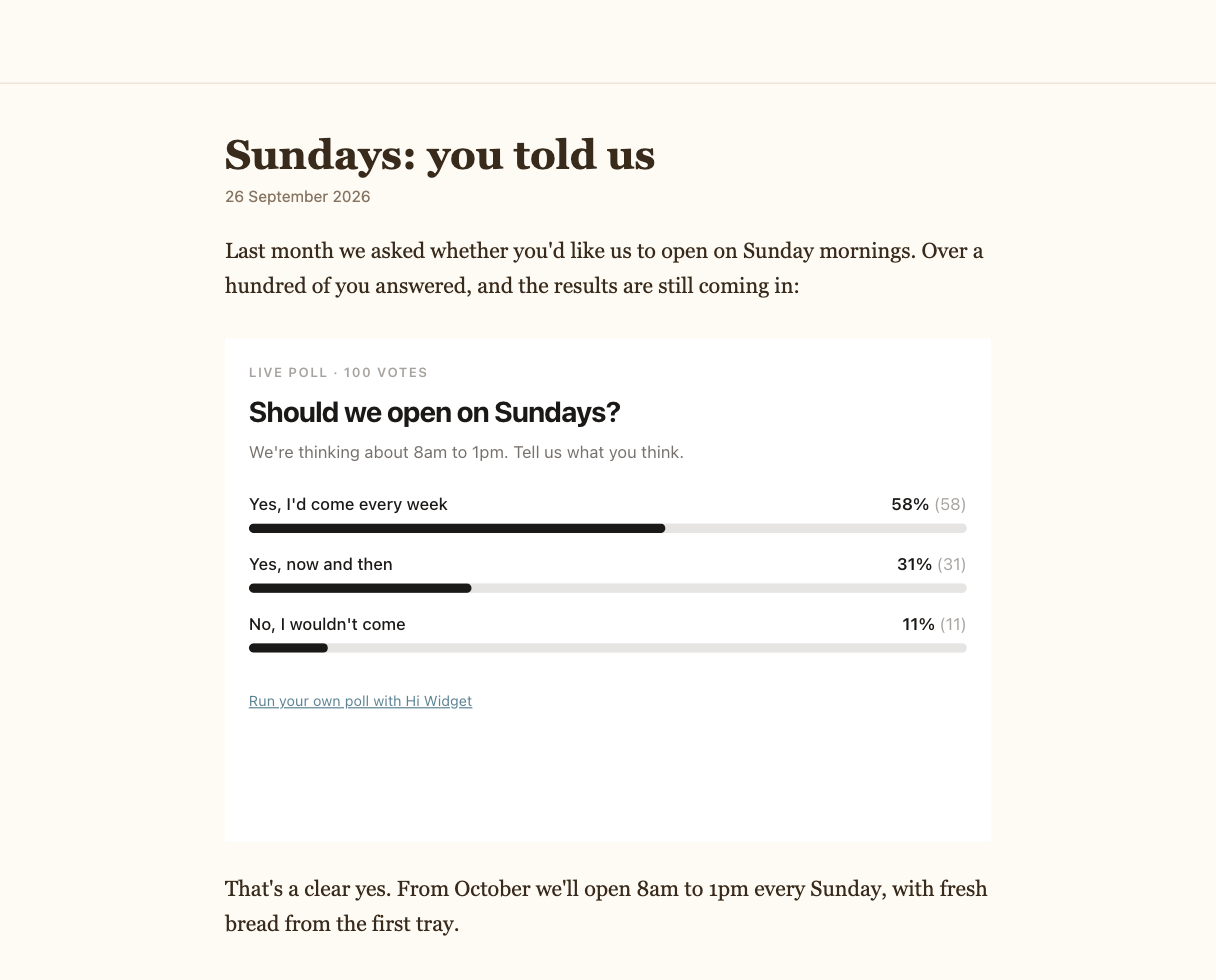 The embed in a blog post. It loads the live results each time the page opens.
The code sets a height of 420 pixels, which fits most polls. If yours has a lot of options, or you’d like less space under a short one, change the height value in the code.
Hi Widget’s name on the page
If your widget shows Hi Widget attribution, the results page has a small “Create your own poll” button at the top, and the embed has a small link underneath. If you’ve turned attribution off in your widget’s settings, neither appears.
Stop sharing
Click Stop sharing on the same card. The link and the embed stop working immediately, and anyone who opens them sees a “page not found” message. Sharing again creates a new link, so an old link in last month’s newsletter doesn’t quietly come back.
A shared poll also stops showing if you delete the poll or the widget, or if your account moves to a plan without polls. If you restore a deleted poll, it comes back unshared.